
How can we help?
👨👩👧👦 Families Page – User Guide
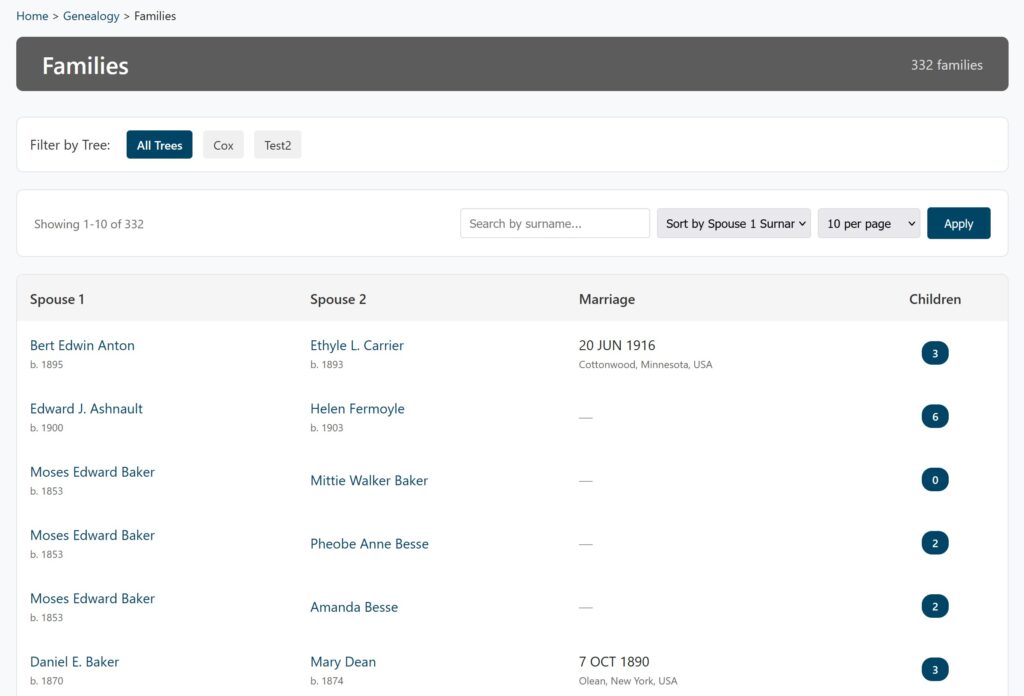
The Families Page displays an organized, searchable list of all married couples and family units in your genealogy database. Use it to browse family units, search by surname, and navigate to individual profiles.
Page Overview and Navigation
The Families page presents a table with key family details and essential navigation tools.
Top Navigation & Filtering
| Feature | Location | Function |
| Breadcrumbs | Top left. | Home > Genealogy > Families. Use this to quickly navigate back to previous pages. |
| Page Header | Top. | Displays the total number of families in your database (e.g., “1,247 families”). |
| Tree Filter | Top, if multiple trees exist. | Allows you to filter the list to All Trees or a specific family tree. Your selection is remembered. |
The Families Table
The core of the page is a table showing essential data for each family unit:
| Column | Content Displayed |
| Spouse 1 | Usually the husband’s full name (clickable) and birth year below. |
| Spouse 2 | Usually the wife’s full name (clickable) and birth year below. |
| Marriage | The marriage date and location (place) below the date. Displays “—” if no marriage information is available. |
| Children | A badge showing the number of children in the family. |
Note: All spouse names are clickable links that take you directly to that person’s full profile.
Searching, Sorting, and Display
Search Bar
Use the search bar to find families where either spouse has a specific surname.
- Type the surname in the search box.
- Click Apply to filter the list.
- Click Clear to reset the search and view all families again.
Sort Options
You can organize the entire families list using the following sort options:
- Sort by Spouse 1 Surname (Default)
- Sort by Spouse 2 Surname
- Sort by Marriage Date (Chronological)
- Sort by Children (Highest count first)
Pagination and Item Count
- Results Per Page: Choose to display 10, 25, 50, or 100 families per page. The change updates automatically.
- Showing Count: A notice at the top of the table shows which families are currently displayed (e.g., “Showing 1-25 of 1,247”).
- Page Navigation: Controls at the bottom allow you to navigate between pages (e.g., ‹, ›, and numbered links).
What You Can Do (Use Cases)
| Use Case | How to Achieve It |
| Track a Specific Line | Use the Search Bar to find families with a particular surname. |
| Find Largest Families | Use the sort option to Sort by Children. |
| View Chronology | Use the sort option to Sort by Marriage Date. |
| Explore Connections | Click any Spouse Name to navigate to the individual’s profile, view their parents, siblings, and source citations. |
| Browse Efficiently | Adjust Results Per Page to 50 or 100 for faster scrolling through large databases. |
Privacy and Display Notes
- List Visibility: All families in your database appear in the list.
- Profile Privacy: Individual privacy settings take effect when you click through to a profile.
- Links to individuals marked as private will be inaccessible.
- Information for living individuals may be restricted or hidden based on your site configuration.