
How can we help?
5. Diagnostics
Overview
The Diagnostics tab provides a suite of tools designed to help you identify and troubleshoot issues related to your LineagePress installation, server environment, and database integrity. These tools can reveal configuration problems that may affect GEDCOM imports, plugin performance, or overall data reliability.
Accessing Diagnostics
To open the Diagnostics panel:
- Navigate to LineagePress → Dashboard.
- Click on the Diagnostics tab.
Diagnostic Tools
The left-hand column of the Diagnostics page lists all available tests.
Click any Run button to start a diagnostic. Results will appear in the Test Results panel on the right.
GEDCOM Comparison
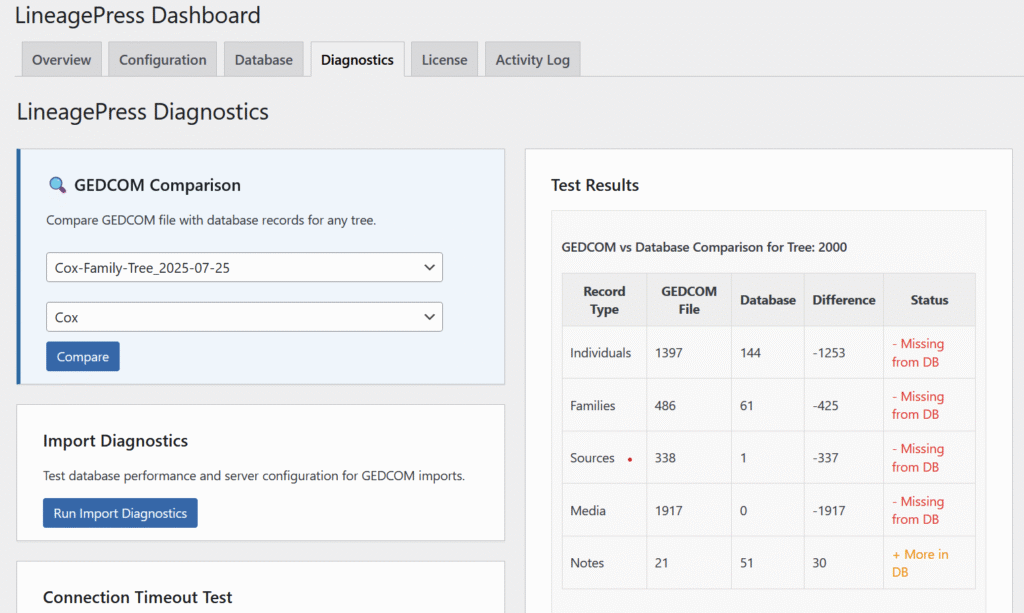
- Purpose: Compares a previously uploaded GEDCOM file against an existing LineagePress family tree to verify that all data was imported correctly. This helps identify discrepancies or missing records between the source file and your database.
- How to Use:
- Select a GEDCOM file from the Select GEDCOM file… dropdown.
- Choose a target family tree from the Select tree… dropdown.
- Click Compare.
- Expected Output: A comparison report highlighting matching and differing records between the GEDCOM file and the LineagePress database.
Import Diagnostics
- Purpose: Evaluates your server environment and database performance to ensure they meet the requirements for importing GEDCOM files efficiently.
Useful for diagnosing import failures, timeouts, or slow performance. - How to Use: Click Run Import Diagnostics.
- Expected Output: A detailed report summarizing server and database configuration values relevant to import operations.
Connection Timeout Test
- Purpose: Checks the stability and timeout configuration of your database connection. A stable connection is critical for large imports and intensive data operations.
- How to Use: Click Run Connection Test.
- Expected Output: A stability summary including connection timeouts, dropped connections, and recommendations if issues are detected.
Memory Stress Test
- Purpose: Tests the actual memory available to WordPress against PHP’s configured memory limits. Insufficient memory can cause import failures or errors when handling large datasets.
- How to Use: Click Run Memory Test.
- Expected Output: Displays your PHP memory limit, current usage, and available memory during the test.
Upload Limits Test
- Purpose: Verifies the maximum file upload size supported by your web server. This ensures large GEDCOM files can be successfully uploaded.
- How to Use: Click Run Upload Test.
- Expected Output: Shows the maximum permitted upload size and recommendations for increasing limits if needed.
Execution Time Test
- Purpose: Determines whether your server’s PHP script execution time is long enough for GEDCOM imports or data processing operations.
Longer execution times prevent timeouts during large imports. - How to Use: Click Run Execution Test.
- Expected Output: Reports the current
max_execution_timevalue and whether it can be extended successfully.
WordPress Constants Test
- Purpose: Checks critical WordPress configuration constants—such as memory and debugging settings—to ensure optimal plugin operation and troubleshooting capabilities.
- How to Use: Click Run WordPress Test.
- Expected Output: Displays current values of relevant WordPress constants and flags any misconfigurations.
Test Results
The Test Results panel (on the right side of the page) displays detailed output for each diagnostic test you run.
- Results typically include success/failure indicators, measured values, and recommendations for adjustments.
- You can use these results to optimize your WordPress and server configuration, especially when preparing for large GEDCOM imports or resolving performance issues.