
11. Managing Places (Places Section)
The Places section in LineagePress is where you manage all geographical locations referenced in your family trees. This includes birthplaces, deathplaces, marriage locations, and any other event-related locations.
Accessing the Places Section
Navigate to LineagePress > Places in your WordPress admin dashboard.
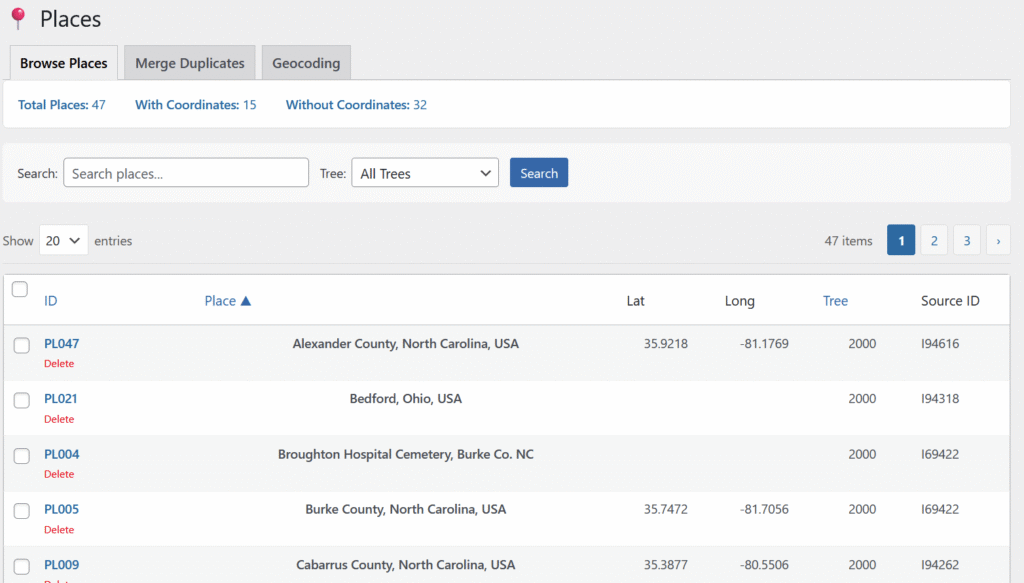
Overview of the Places Section
The Places section is organized into several tabs, allowing you to browse, add, edit, and perform advanced operations on place records.
1. Browse Places
This tab displays all place records in a table format for easy management.
Table Columns
- Checkbox: Select multiple places for bulk actions.
- ID: Unique identifier for the place (e.g.,
P123). Click to open the “Edit Place” tab. - Place: Name of the location (e.g., “Springfield, Illinois, USA”).
- Lat (Latitude): Latitude coordinate, if available.
- Long (Longitude): Longitude coordinate, if available.
- Tree: ID of the family tree this place is associated with.
- Source ID: Identifier for the source of the place record, if applicable.
Place Statistics
Above the table, a summary provides quick statistics and filters:
- Total Places: Total number of unique place records. Click to clear other filters.
- With Coordinates: Shows places that have latitude and longitude. Click to filter.
- Without Coordinates: Shows places missing coordinates. Click to filter.
- Populate from Events (Button): Automatically creates place records from unique locations found in existing individual and family events. Useful for building your initial place list.
Searching and Filtering Places
- Search Box: Enter a place name to find matches (e.g., “London”, “New York”).
- Tree Filter: Filter places by a specific family tree.
- Search Button: Apply search and filter criteria.
- Clear Button: Reset filters to show all places.
Pagination and Display Options
- Show [X] entries: Choose the number of records per page (10, 20, 50, 100).
- Pagination Links: Navigate pages using “‹”, “›”, or page numbers.
Bulk Actions
Perform actions on multiple selected places:
- Select Places: Check the boxes for the desired records.
- Choose Action: Options include:
- Delete Selected: Permanently remove selected place records (irreversible).
- Apply Button: Execute the selected action.
Deleting a Single Place
Click the Delete link next to a place ID to permanently remove that specific record. This action cannot be undone.
2. Edit Place (Tab)
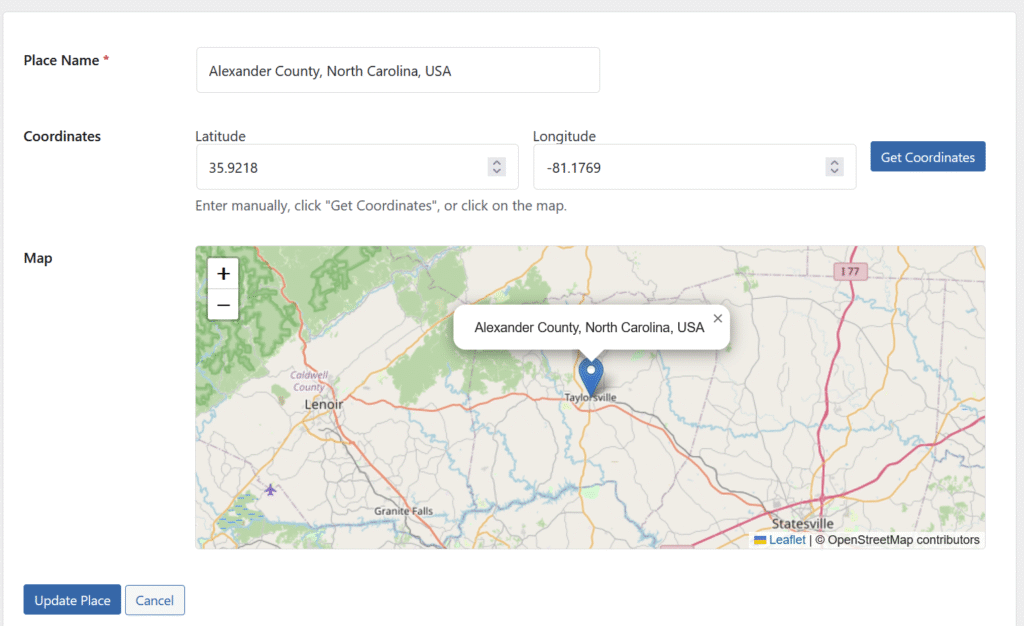
Clicking a Place ID opens the Edit Place tab, where you can modify:
- Place name
- Associated family tree
- Latitude and longitude coordinates
3. Add Place (Tab)
Manually create a new place record:
- Enter the place name
- Associate it with a tree
- Optionally add latitude and longitude coordinates
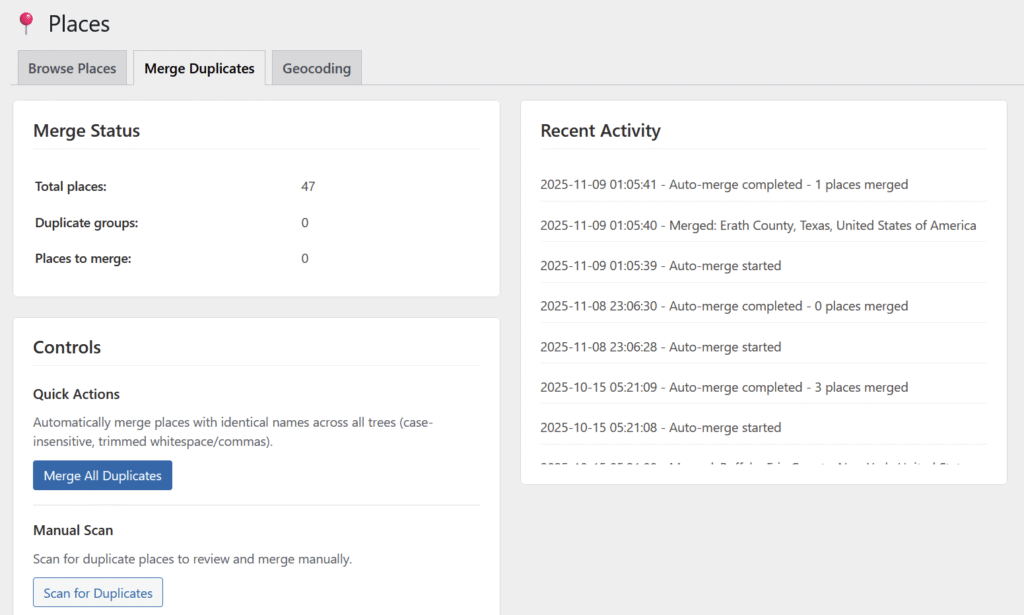
4. Merge Duplicates (Pro Feature)
LineagePress Pro users can identify and combine duplicate place entries. This is useful for cleaning data from multiple sources with inconsistent naming.
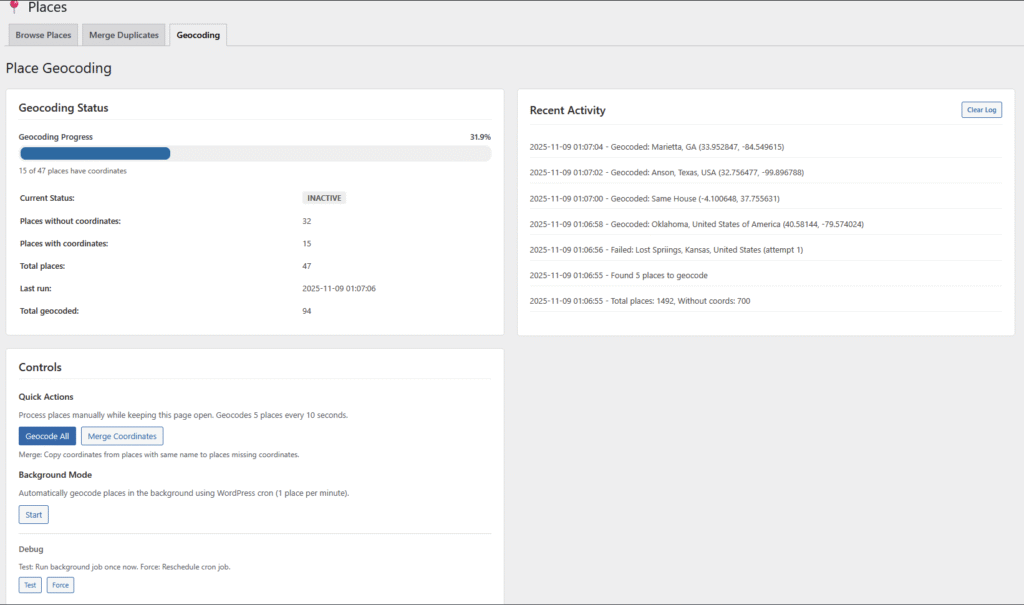
5. Geocoding (Pro Feature)
Also a Pro feature, Geocoding automatically converts place names into precise latitude and longitude coordinates. Essential for mapping features and visualizing family history.
Coordinates (Latitude and Longitude)
Latitude and Longitude specify a location on Earth. Including coordinates in your place records is important for:
- Mapping: Display events on interactive maps
- Accuracy: Ensures precise location data
- Data Quality: Enhances the overall utility of your genealogical records