
📖 LineagePress: Individual Pages User Guide
1. What Are Individual Pages?
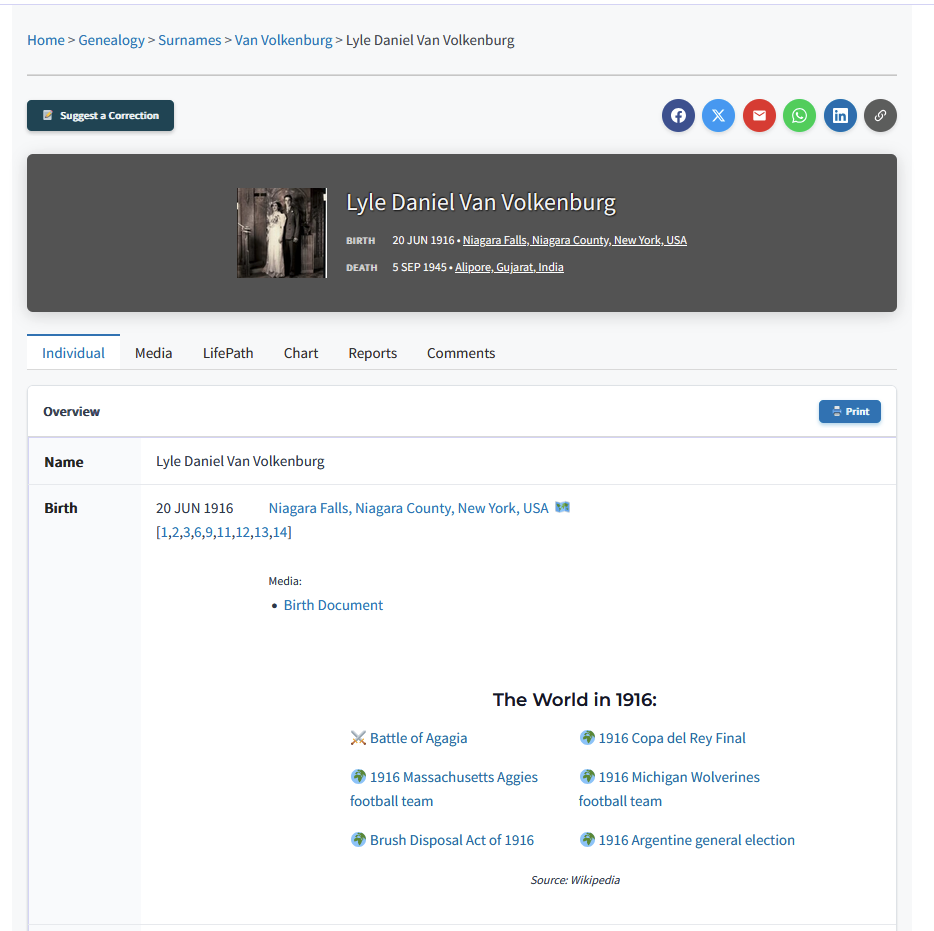
Individual pages are detailed profiles for each person in your family tree. Think of them as digital biography pages that showcase everything you know about an ancestor—their photos, life events, family connections, and supporting documents.
Each person in your genealogy database receives a dedicated page with a unique web address, making it easy to share specific ancestor information with family members or researchers.
2. Getting to Individual Pages
There are three primary ways to find a specific profile:
- From Your Genealogy Hub: Visit your main page (usually
/genealogy/), click “Surnames,” and select a name from the list. - Direct Links: Each person has a permanent URL, for example:
yoursite.com/genealogy/surnames/person/I123/main_tree/ - Search Results: Use the site’s search bar to find a name, then click the result.
3. Understanding the Page Layout
Header Section
The top of the page provides a quick snapshot of the individual:
- Profile Photo: The primary image for the person.
- Vital Stats: Full name, birth, and death dates/locations.
- Privacy Badges: Indicators for living people (Admins only).
- Share Buttons: Quick links for social media (Pro Version).
Navigation Tabs
Information is organized into several tabs for easy browsing:
| Tab | Content Description |
| Individual | The main view featuring the overview table, parents, spouses, and life events. |
| Media | Photo galleries and scanned documents like birth certificates or census records. |
| LifePath (Pro) | An interactive chronological timeline with historical context. |
| Chart (Pro) | Generate pedigree, descendant, and family group charts. |
| Reports (Pro) | Generate printable Ahnentafel or descendant reports. |
| Comments (Pro) | A space for family stories, memories, and suggested corrections. |
4. Key Features
🛡️ Privacy Protection
LineagePress automatically protects living people. Private records are hidden from public view, and recent individuals may show limited data to ensure security.
🗺️ Interactive Maps
Location names are clickable. Tapping a place name will open Google Maps, while internal map icons (🗺️) show other related family locations in your tree.
📜 Source Citations
We maintain professional genealogy standards. Numbered citations like [1] or [2] link directly to the sources at the bottom of the page, allowing you to verify every fact.
5. Mobile Experience
Individual pages are fully optimized for phones and tablets:
- Swipe Navigation: Move through tabs by swiping left or right.
- Touch-Friendly: Large buttons and links designed for easy tapping.
- Responsive Layout: Tables stack vertically on small screens for better readability.
- Media Control: Pinch to zoom on photos and one-tap sharing to WhatsApp or SMS.
6. Tips for the Best Experience
For Researchers
- Check Sources: Always look at the bottom of the page for original records.
- Note Person IDs: Keep track of IDs (e.g., I123) for quick database referencing.
- Migration Patterns: Use the map feature to visualize how your family moved over generations.
For Family Sharing
- Contribute Stories: Use the Comments Tab to add personal memories that aren’t in official records.
- Print Charts: Use the Chart Tab to print family group sheets for reunions.
- Suggest Edits: If you see a mistake, use the “Suggest a Correction” feature to notify the admin.
7. Troubleshooting & Help
- Can’t find someone? Try searching by maiden name or checking different spellings.
- Information missing? Some details may be hidden due to privacy settings for living relatives.