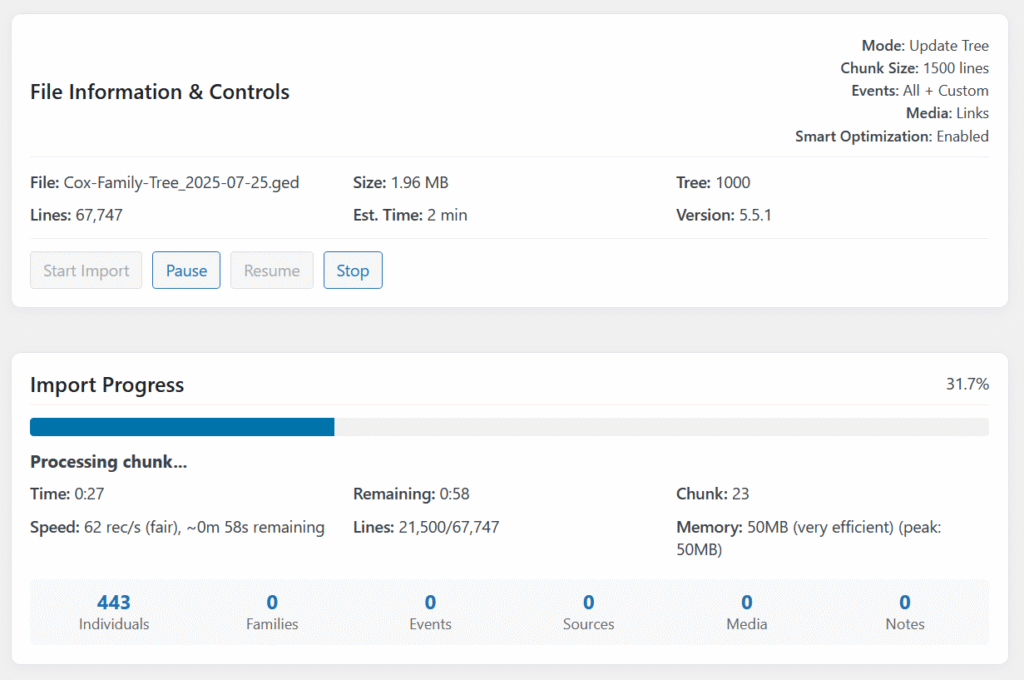
LineagePress uses a robust, chunked import process to handle GEDCOM files of any size efficiently. This guide outlines the setup, monitoring, and best practices for a successful import.
Quick Start: The 4-Step Process
Create a Tree First
Go to LineagePress → Trees → Add New Tree.
Enter a Tree ID (alphanumeric) and Tree Name.
Click Save.
Import Your GEDCOM
Go to LineagePress → Import.
Click “Choose File” and select your .ged file.
Select your destination tree and choose an Import Mode.
Click “Next”.
Monitor Progress
The import automatically begins running in reliable, manageable chunks.
Do not close the browser window until the progress bar is complete.
Review Results
Check the import summary page for final record counts.
Review any errors or warnings before navigating to your data.
Import Modes (Selection)
Mode
Primary Function
Best For
Warning / Note
Update Tree (Recommended)
Fills empty fields and updates existing records while preserving manual edits.
Regular maintenance and ongoing work.
Safest option for keeping manual changes.
Replace Tree
Deletes ALL existing data in the tree first, then imports the file from scratch.
Starting a clean slate or fixing major data corruption.
⚠️ Cannot be undone. Always back up first.
Add Only
Only adds new records. It completely skips and never modifies existing records.
Merging data from multiple GEDCOM sources.
Use with caution to avoid duplicate records.
Event and Data Handling
Event Handling
Import All Events (Recommended): Ensures all life events (births, deaths, marriages, etc.) are included.
Import Custom Events: Check this option to include non-standard, specialized event types from your genealogy software.
Performance and Media Settings
These two categories control your server load and how the system handles files.
1. Performance Settings (Controls Server Load)
Use these settings to optimize the reliable chunked processing of your data.
Setting
Options/Notes
Server Load / Stability
Smart Import Optimization
✅ Enabled (Recommended): Automatically adjusts chunk sizes up to 25,000 lines based on your server’s real-time performance.
High performance, adaptive to server capacity.
Processing Chunk Size
5,000 lines: Conservative (slower, most stable). 10,000 lines: Balanced (recommended for average hosts). 15,000 lines: Maximum performance (faster, requires a robust server).
Direct control over memory and timeout risk.
2. Media Handling Settings (Controls File Linking)
These settings determine if and how the plugin handles media records and the linking of files after the genealogical records have been imported.
Media Setting
Effect on File Linking
Best Use
Do not import media
Ignores all media records referenced in the GEDCOM.
When you want to skip media management entirely for the initial core data import.
Import media links only
Imports the media records (titles, descriptions, etc.) but skips attempting to link the actual files from the WordPress Media Library.
Standard imports when you plan to manually manage the file links later.
🚀 Import Speed & File Size Guidelines
Important: These are conservative estimates based on average shared hosting (2GB RAM). Your actual times may be significantly faster depending on your server (VPS/Dedicated can be 2-3x faster).
File Size
Individuals
Families
Estimate Time
Recommended Settings
Small (< 1 MB)
50-750
20-300
10 seconds – 2 minutes
Default
Medium (1-10 MB)
750-6,000
300-2,500
2 – 15 minutes
Smart Optimization
Large (10-50 MB)
6,000-30,000
2,500-12,000
20 – 75 minutes
15K chunk + Smart
Very Large (50+ MB)
30,000+
12,000+
1+ hours
Contact support for optimal settings.
🛠️ Troubleshooting and Best Practices
Character Encoding & Special Characters
LineagePress handles all GEDCOM versions (5.5, 5.5.1, 7.0) and attempts to convert non-UTF-8 encoding. However, pre-conversion is highly recommended for reliability.
Issue
Cause
Solution (Best Practice)
Accents () appear as or
Your GEDCOM file uses or encoding.
Export as UTF-8 directly from your genealogy software, or use a text editor (like Notepad++) to Convert to UTF-8 before upload.
Verify Encoding
Check the GEDCOM file header: it should say 1 CHAR UTF-8.
Troubleshooting Guide
Issue
Cause
Solution
Import Stalls/Freezes
Server timeout or poor connection.
Refresh the page and click “Resume.” If it fails, disable Smart Optimization or reduce chunk size.
Memory Errors
PHP memory exhaustion.
Reduce chunk size to 5,000 lines. Contact your hosting provider to increase PHP memory limit ().
Missing Data
Incorrect import mode or disabled options.
Check that Import All Events is checked. If data is still missing, use Replace Tree and re-import.
Duplicate Records
Previous import used “Add Only” mode.
Use “Replace Tree” to start fresh.
Best Practices Checklist
Before Import
During Import
After Import
✅ Backup your database.
✅ Keep browser window open.
✅ Review import summary for warnings.
✅ Convert GEDCOM to UTF-8.
✅ Don’t navigate away or refresh (unless resuming).
✅ Verify key records and check media links.
✅ Validate your GEDCOM file.
✅ Monitor the progress bar.
✅ Run post-import utilities (like Geocoding).
This is a good, concise FAQ section. I will format it into a clean, easy-to-read table structure to integrate seamlessly with the rest of the professional guide.
❓ Frequently Asked Questions (FAQ)
Question
Answer
My import is running very slowly or seems stalled. What can I do?
The importer is designed to be slow and steady to prevent server timeouts. If it seems stuck, try: 1. Cancel the current import. 2. Return to the Import Setup page. 3. Under Advanced Options, select a smaller “Processing Chunk Size” (e.g., 5000 lines). 4. Ensure “Smart Import Optimization” is checked to help manage resources. 5. Try the import again.
I see a “GEDCOM Conversion” notice. What does this mean?
LineagePress uses the modern GEDCOM 7.0 standard. If you upload a file in an older format (like GEDCOM 5.5.1), the importer runs a background process to automatically convert your file to the new standard. This is a normal, necessary step to ensure data compatibility and accuracy, and the import will begin automatically afterward.
What is the practical difference between “Update Tree” and “Add Only” import modes?
Update Tree will add information that is missing from existing records (e.g., a death date) but will not overwrite existing data you have manually entered. Add Only will completely ignore existing records and only import individuals and families that are entirely new to the database.
The import failed. What are my next steps?
The most common cause of failure is hitting server resource limits. Check for any specific error messages displayed on the screen. Try starting the import again with a smaller “Processing Chunk Size” (e.g., 5000 lines) in the advanced settings.
Why do I have to create a “Tree” before importing?
A Tree is a mandatory container for a complete set of genealogical data. This architecture allows you to manage multiple, separate family trees within the same WordPress site. The importer must know which container to place the incoming data into.