
3. Configuration Settings
1. Privacy Settings
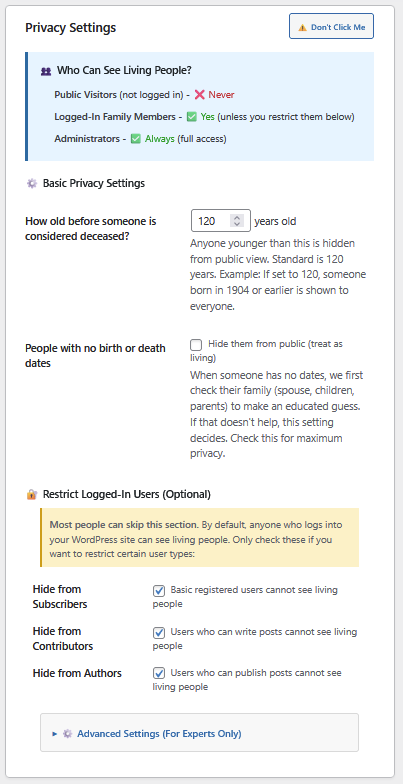
This is arguably the most critical section for any genealogy website. Here, you define who can see what, ensuring you protect living relatives while sharing history.
a. 👥 Who Can See Living People?
- This section is likely an informational summary rather than a setting you change directly here. It outlines the hard-coded “Golden Rules” of the plugin’s security model so you understand the baseline behavior before making changes below.
- Public Visitors (not logged in) – ❌ Never: This confirms that no matter what settings you tweak below, random visitors from the internet will never see details of living individuals. They will likely see “Living” or “Private” placeholders.
- Logged-In Family Members – ✅ Yes: This indicates that the default state of the plugin is “Trust.” If you have given someone a username and password to your site, the system assumes they are family and allows them to see living data (birthdays, living cousins, etc.).
- Administrators – ✅ Always: As the site owner/admin, you have no restrictions.
b.⚙️ Basic Privacy Settings
- This section controls the heuristics (logic) the system uses to guess if someone is alive when a death date is missing.
- “How old before someone is considered deceased? [ ] years old”
- How it works: This is a fallback calculation. If a record has a Birth Date but no Death Date, the system calculates their age relative to today.
- The Logic:
Current Year - Birth Year = Age. If theAgeis less than the number you enter here (e.g., 120), the system assumes they are still alive and hides them. - Recommendation: Keep this at 120. If you lower it to 90, you risk exposing the personal data of a 91-year-old relative who is still alive but hasn’t had a death date entered yet.
- “People with no birth or death dates”
- It uses a “guilt by association” logic. If a person has no dates, the system looks at their immediate family members to determine if it is mathematically probable that the person is still alive.
- Here is how those specific heuristics work:
- a. The Spouse Check
- The system looks at the birth and death dates of all linked spouses.
- The Logic: If a spouse was born, say, 150 years ago, or died 100 years ago, it is statistically safe to assume the partner is also deceased.
- Why it matters: This is often the most accurate indicator for adults who have no birth records but were married to someone who does.
- b. The Parent Check
- The system looks at the parents’ birth dates.
- The Logic: If the individual’s parents were born in 1800, the individual (their child) cannot possibly be alive today.
- Why it matters: This effectively filters out “ghost” children from centuries ago where only the parents had recorded dates.
- c. The Children Check
- As you noted, it looks at the children.
- The Logic: If a person has a child who was born 110 years ago, the parent is definitely deceased.
c. 🔐 Restrict Logged-In Users (Optional)
This section allows you to override the default rule that “Logged-In Family Members” see everything. It uses WordPress User Roles to apply granular restrictions.
- Hide from Subscribers:
- Who are they? “Subscriber” is the default role for new users in WordPress. They can log in and view content but cannot write or edit anything.
- Use Case: Check this if you want to allow people to register to see deceased family history, but you don’t trust them enough yet to see living private data (like your phone number or current address).
- Hide from Contributors:
- Who are they? Users who can write blog posts/stories but cannot publish them without approval.
- Use Case: Check this if you have a family member helping write stories, but you still want to restrict their access to living data.
- Hide from Authors:
- Who are they? Trusted users who can write and publish their own posts.
- Use Case: It is rare to check this. Usually, if you trust someone enough to publish content on your site, you trust them with family data.
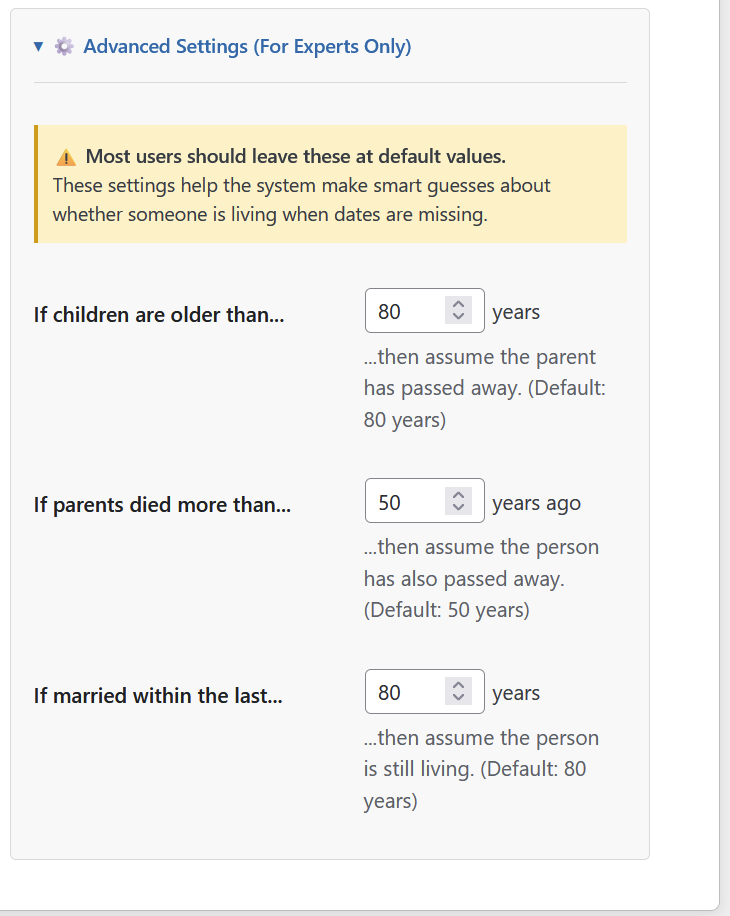
These advanced settings are the mathematical “tie-breakers” used when a profile has no birth or death dates. The system looks at the dates of relatives to calculate the probability of the person being alive. It’s best to leave them as.
d. If children are older than… [ ] years
- Default: 80 years
- The Logic: This looks “down” the tree. It assumes that a parent is typically at least 20 years older than their child.
- How it works:
- If a person has no dates, the system checks their children.
- If a child was born 81 years ago, the system calculates:
81 (Child's Age) + ~20 (Generation Gap) = ~101 (Parent's Estimated Age). - Since the parent is likely over 100, the system marks the parent as Deceased.
- Why change it? Lowering this number (e.g., to 60) will make more ancestors visible publicly, but increases the risk of showing a very old living parent.
e. If parents died more than… [ ] years ago
- Default: 50 years
- The Logic: This looks “up” the tree. It attempts to clear out “ghost” children from historical records.
- How it works:
- If a person has no dates, the system checks their parents’ death dates.
- If the parent died 51 years ago, the system assumes the child has also passed away.
- ⚠️ Important Note: The default of 50 years is actually quite aggressive.
- Example: If a father died in 1975 (51 years ago) leaving a 5-year-old child, that child is only 56 today and very much alive. Yet, this setting would mark them as Deceased (Public).
- Recommendation: For maximum privacy, you might want to increase this to 80 or 90 to ensure you don’t accidentally expose middle-aged relatives whose parents died young.
f. If married within the last… [ ] years
- Default: 80 years
- The Logic: This looks at “Life Events.” Marriage is a strong indicator of being alive at that specific time.
- How it works:
- If a person has no birth/death dates but has a marriage record from 1980 (46 years ago).
- Since 46 is within the 80-year limit, the system assumes the person is Living (Private).
- If the marriage was in 1940 (86 years ago), it falls outside the limit, and the system assumes they are likely Deceased.
💬 2. Comments & Visitor Interaction
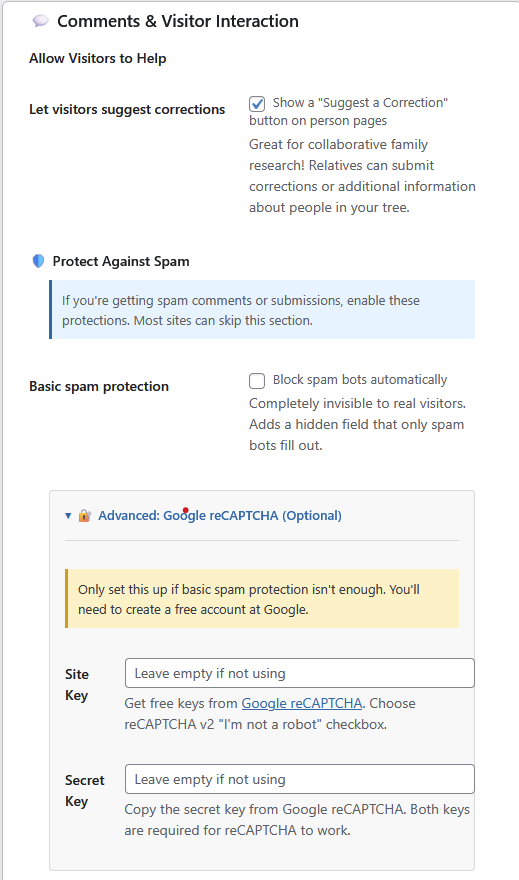
These settings control how the public (or family members) can communicate with you regarding the data on your site, and how the system filters out junk messages.
a. 🤝 Ways to Help
- Setting: “Let visitors suggest corrections”
- Function: Toggles a specific button on every person’s profile page, usually labeled “Suggest a Correction” or “Edit Suggestion.”
- How it works:
- Unlike a standard blog comment (which appears publicly at the bottom of the page), this usually opens a private form.
- The visitor can enter specific details (e.g., “Uncle Bob’s birth year is actually 1952, not 1950”) and send it directly to you, the administrator.
- Why use it? It is the best way to crowdsource the accuracy of your tree without giving everyone full editing rights. It keeps the public page clean while allowing family members to help fix errors.
b. 🛡️ Protect Against Spam
- Setting: “Basic spam protection (Block spam bots automatically)”
- Function: Enables a “Honeypot” mechanism to stop automated scripts from flooding your correction forms or comments with junk.
- How it works (The “Honeypot” Technique):
- The text mentions it adds a “hidden field that only spam bots fill out.”
- For Humans: The field is hidden using CSS (styling), so a real person looking at the screen never sees it and leaves it empty.
- For Bots: Spam bots usually read the raw HTML code and try to fill in every input field they find to ensure the form submits.
- The Trap: If the system receives a form where this hidden field has text in it, it knows a bot filled it out and immediately blocks the submission.
👨💻 Why this is better than CAPTCHA:
This method is preferred because it doesn’t annoy your users. They don’t have to click “I am not a robot” or identify traffic lights; the protection happens silently in the background.
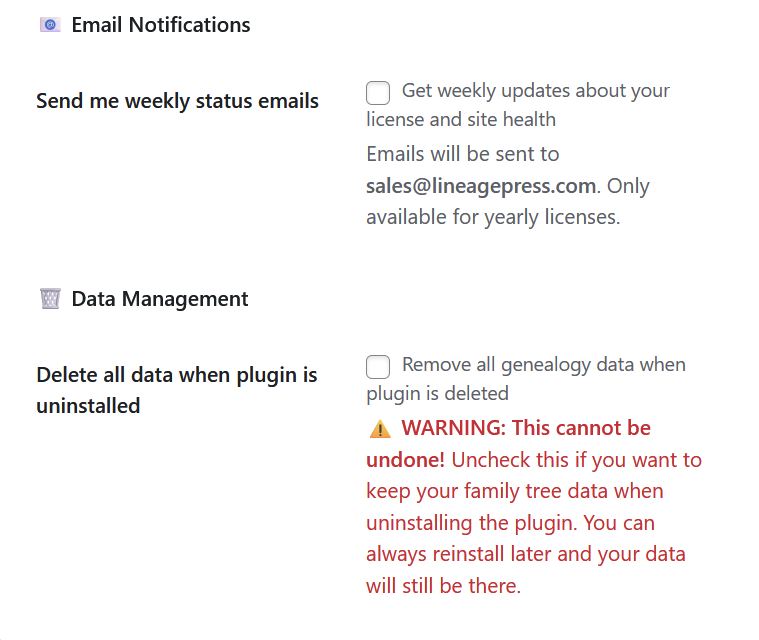
3. 📧 Email Notifications
- Setting: “Send me weekly status emails”
- Function: Enables an automated weekly report sent to your inbox.
- What it contains:
- License Status: Reminders if your subscription is about to expire.
- Site Health: Alerts if there are technical issues with your tree, such as broken links or database errors.
- Destination: The text indicates emails will be sent to the address currently on file (in your example text, it shows
sales@lineagepress.com, but on your actual dashboard, this should display your own administrator email). - Restriction: This feature is locked to Yearly Licenses only. If you are on a free or monthly plan, this checkbox might be grayed out or inactive.
4. 🗑️ Data Management
- Setting: “Delete all data when plugin is uninstalled”
- Function: This is a “Self-Destruct” switch for your database tables.
- How it works:
- Unchecked (Recommended): If you deactivate and delete the LineagePress plugin from your WordPress plugins page, your family tree data (names, dates, photos) remains in the database.
- Benefit: If you reinstall the plugin 6 months later, your tree reappears instantly. Nothing is lost.
- Checked (Destructive): If you delete the plugin, the system performs a “Clean Uninstall.” It completely wipes every record, photo link, and setting associated with LineagePress from your database.
- Risk: This cannot be undone. Once the plugin is deleted, your research is gone forever unless you have a separate backup. Only check this if you are permanently removing the software and want to clean up your server.
- Unchecked (Recommended): If you deactivate and delete the LineagePress plugin from your WordPress plugins page, your family tree data (names, dates, photos) remains in the database.
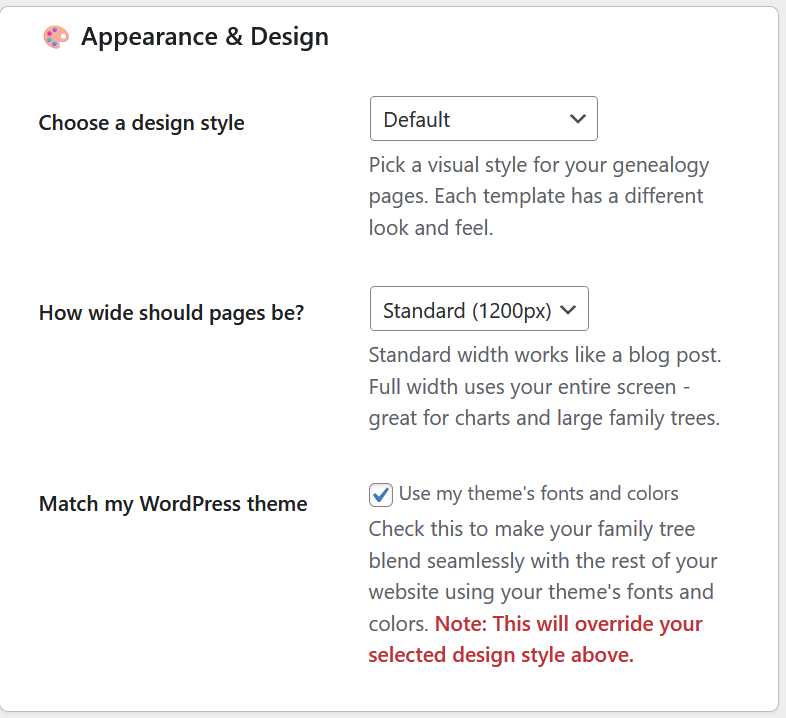
5. 🎨 Appearance & Design
These settings control the visual presentation of your family tree, allowing you to choose between pre-built styles or blending the plugin into your existing site design.
a. Choose a design style
- Function: Selects the “Skin” or “Template” for the genealogy pages.
- How it works:
- LineagePress likely comes with bundled CSS stylesheets (e.g., “Vintage Paper,” “Modern Minimal,” “Dark Mode”).
- Changing this setting swaps the active stylesheet loaded on profile pages.
- Why use it? If you want a specific look (like an old-fashioned scrapbook feel) without writing any code yourself.
b. How wide should pages be?
- Function: Controls the container width of the main content area.
- Options:
- Standard Width: Constrains the content (usually to around 800px – 1200px). This is better for reading long biographies or stories, as lines of text that are too wide are hard to read.
- Full Width: Expands to fill the browser window (100%). This is essential for Pedigree Charts, Fan Charts, or Descendant Trees, which need as much horizontal space as possible to display multiple generations without scrolling.
c. Match my WordPress theme
- Function: A “Chameleon Mode” that forces the plugin to inherit styles from your active WordPress theme (e.g., Astra, Divi, Twenty Twenty-Four).
- How it works:
- Unchecked: The plugin uses its own fonts (e.g., Roboto) and colors (e.g., Blue links).
- Checked: The plugin disables its specific font/color CSS rules. It lets your theme’s
style.csstake over. - The Trade-off: As noted in the text (“This will override your selected design style above”), checking this disables the specific “Design Style” you picked in option #1 regarding fonts and colors, ensuring your family tree doesn’t look like a separate website from your main blog.
6. 📋 What to Show & Hide
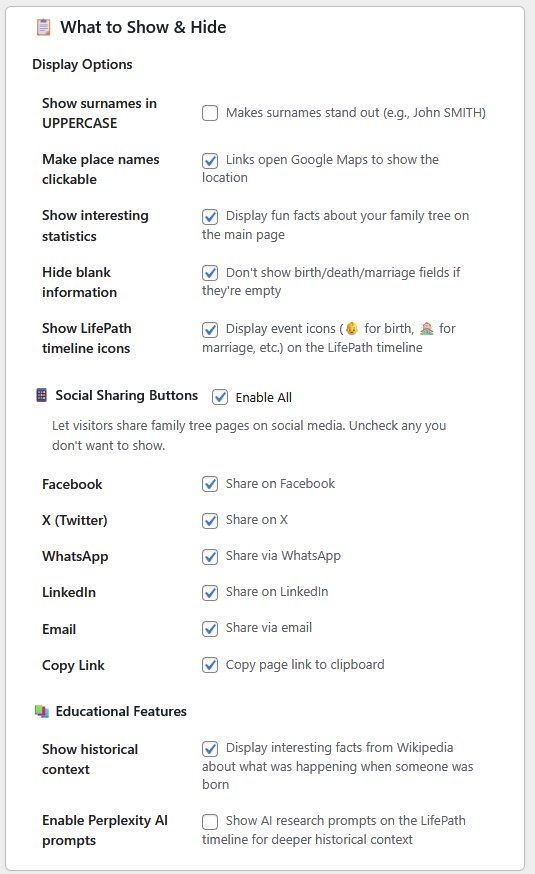
This section focuses on the user interface (UI) and user experience (UX) of your profile pages. It determines how data is formatted, what interactive elements are available, and how much “extra” context is displayed alongside the raw genealogical facts.
a. Display Options
These settings tweak the visual presentation of data to align with standard genealogical conventions or modern web preferences.
- Show surnames in UPPERCASE
- Function: Automatically converts “John Smith” to “John SMITH.”
- Why use it? This is a standard convention in professional genealogy. It helps distinguish surnames from middle names, which is especially useful for cultures where surnames can be ambiguous (e.g., “James THOMAS” vs. “Thomas JAMES”).
- Make place names clickable
- Function: Turns text like “Springfield, Illinois” into a hyperlink.
- Action: Clicking the link opens Google Maps in a new tab, pinned to that specific location. This helps visitors visualize migration patterns.
- Show interesting statistics
- Function: Adds a widget (usually to the dashboard or home page) showing metrics like “Average Lifespan,” “Most Common Surname,” or “Oldest Living Relative.”
- Hide blank information
- Function: Suppresses empty database fields.
- Example: If you don’t know a person’s “Baptism Date,” this setting ensures the word “Baptism” doesn’t appear on the page at all, keeping the profile looking clean rather than full of “Unknown” labels.
- Show LifePath timeline icons
- Function: Adds visual flair to the biography timeline.
- Action: Instead of just text, it places emojis or icons next to events (e.g., 👶 for Birth, 💍 for Marriage, ✝️ for Death, 🚢 for Immigration). This makes the timeline easier to scan at a glance.
b. 📱 Social Sharing Buttons
- Function: Adds a row of buttons to the bottom or side of every public profile page.
- Purpose: Encourages visitors to share interesting ancestors with their own networks.
- Granular Control: You can “Enable All” or toggle specific platforms:
- Facebook / X (Twitter) / LinkedIn: Standard social media sharing.
- WhatsApp: Very popular for family groups; allows mobile users to send a profile directly to the “Cousins Group Chat.”
- Email: Opens the user’s default mail client with a link to the profile.
- Copy Link: A utility button that copies the URL to the clipboard for easy pasting.
c. 📚 Educational Features
This section adds historical depth to your tree, transforming it from a list of dates into a history lesson.
- Show historical context
- Function: Enriches the timeline with external history.
- How it works: If an ancestor was born in 1914, the system might pull a snippet from Wikipedia about the start of WWI or the opening of the Panama Canal and display it alongside the birth event. This helps visitors understand the world your ancestor lived in.
- Enable Perplexity AI prompts
- Function: A modern research aid.
- How it works: It likely inserts a “Ask AI” button or pre-written prompt text on the timeline.
- Example: Next to a 1850 census record, it might suggest: “Ask Perplexity: What was life like for a farmer in Ohio in 1850?” This encourages users to use AI tools to flesh out the narrative of their ancestors’ lives.
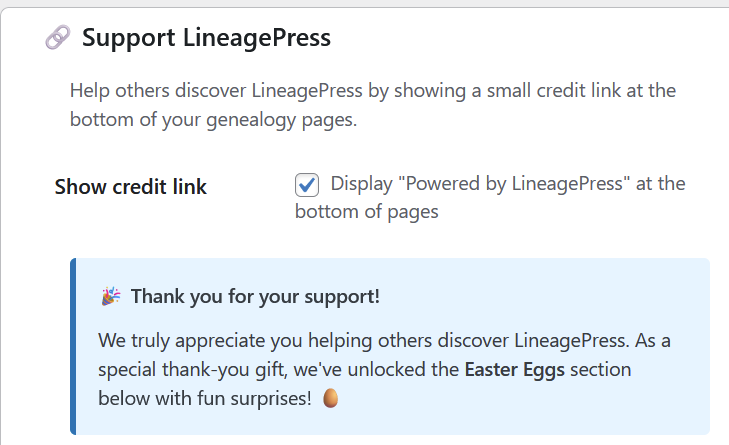
7. 🔗 Support LineagePress
This section is a “Quid Pro Quo” feature. It offers a trade: you help the developers by displaying a small ad, and they reward you with fun hidden features.
- Setting: “Show credit link (Display ‘Powered by LineagePress’ at the bottom of pages)”
- Function: Toggles a small text link in the footer of your public genealogy pages.
- Why do this?
- For the Developer: It helps small plugin teams grow by referring visitors who might be interested in starting their own family tree.
- For You (The Reward): As the text notes (“We’ve unlocked the Easter Eggs section”), checking this box is the trigger that reveals the hidden “Easter Eggs” menu.
- The Trade-off: If you uncheck this box to remove the branding, the “Easter Eggs” section (with the Retro Pedigree charts and games) will likely disappear from your dashboard.
8. Easter Eggs – Fun Surprises!
- The “Hidden” Section: As requested, I won’t spoil the secret of exactly how to access this! However, this section is a delightful addition by the developers. It typically contains lighthearted features, credits to the team in a unique way, or perhaps a whimsical display mode for your trees. It serves as a fun reward for power users who like to explore every corner of the interface. Keep clicking around and exploring the dashboard, you might just stumble upon it!